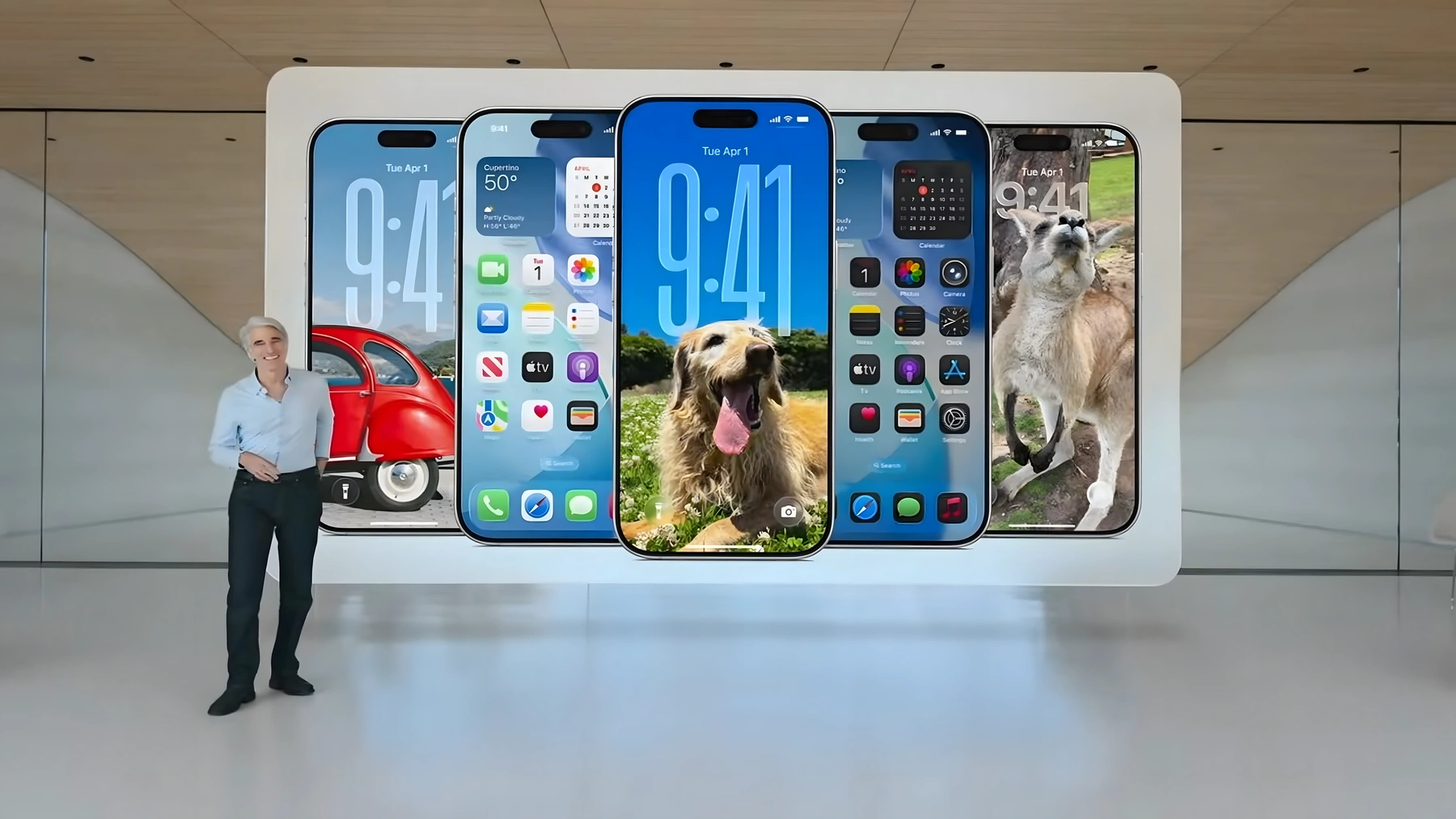

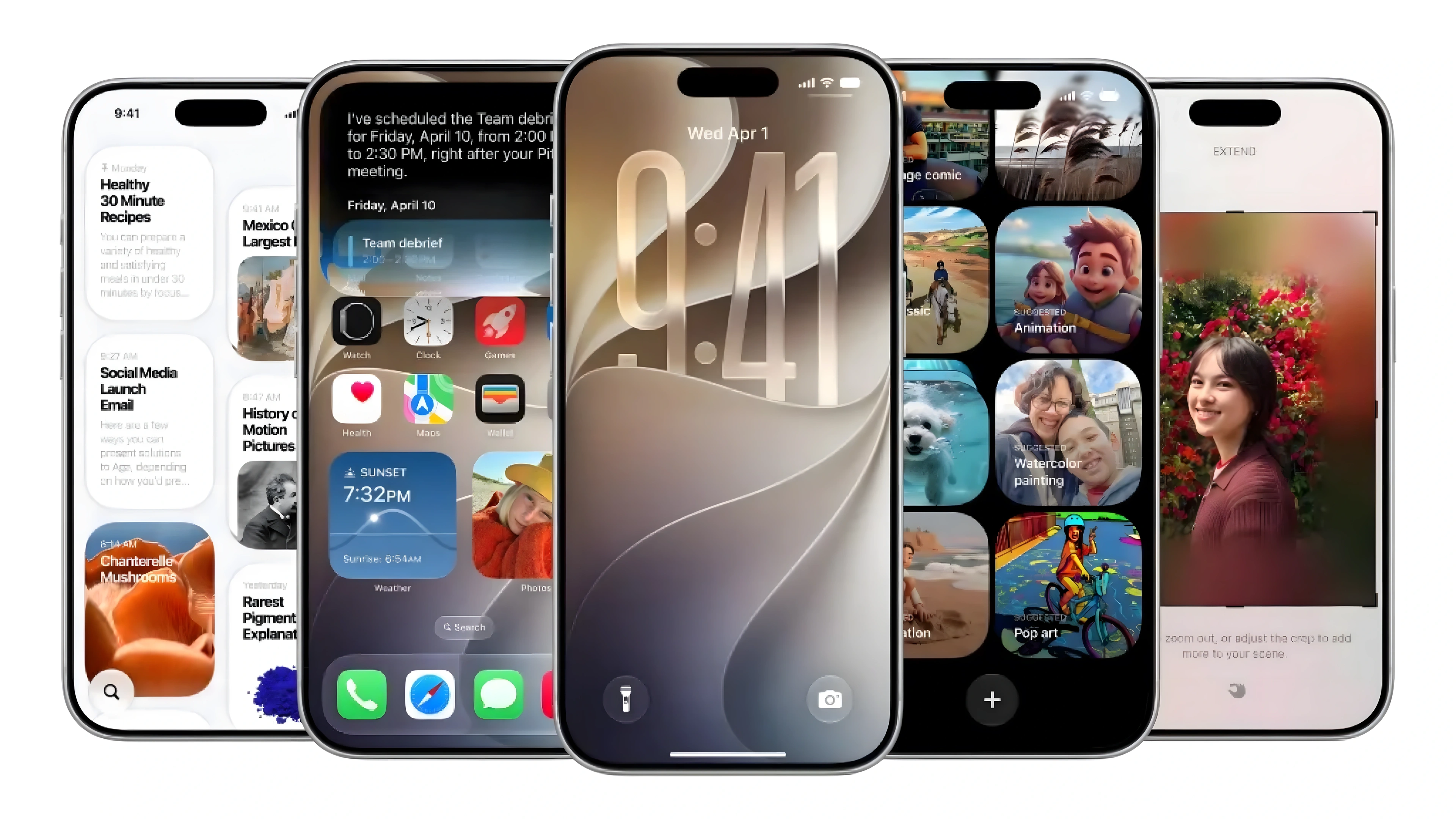
Every year at WWDC, Apple gives developers new opportunities while also building features that overlap with independent apps. In this article, I use “Sherlocked” to mean Apple added meaningful native overlap; it does not mean the third-party product is dead, fully replaced, or no longer worth paying for. Here is where Apple created that overlap at WWDC 2026.
Apple Cash Splitting the Bill
Splid is a lovely little app created by Nicolas Jersch, an independent developer. It doesn’t require any sign-ups, works offline, supports multiple currencies with over 150 currencies covered, and has a rating of 4.9 out of 5 stars. Nicolas Jersch was even kind enough to update it for iOS 26 in April. Then WWDC happened.
In iOS 27, Apple showed a bill-splitting flow that scans a receipt through Siri in the Camera app. The user can then tap “Split Bill with Apple Cash,” review the breakdown, and request payments through Wallet.
Because the flow depends on Apple Cash, its availability is currently limited to the United States.
1Password, LastPass, Dashlane
The Passwords app came out with iOS 18 in 2024 and did all the basics, including storing passwords, auto-filling them, and warning when the passwords were weak. This was a legitimate effort at being a built-in password manager, and it “Sherlocked” the casual need for 1Password and LastPass pretty quickly for a decent portion of the population. iOS 27 targets the more difficult problem. The problem that the industry had been trying, but largely failing, to address since 2014.
That was when LastPass rolled out its Auto-Change Password functionality. The idea was simple: create a background browser tab, go to a site from the list of those supported, create a password, and submit it. The list included about 75 widely used domains, with Amazon, Facebook, and a few more on it. All the rest were manual. Dashlane has also since introduced a similar feature, enabling multiple bad passwords selected by the user to be updated at once.
The problem faced by the two, and other attempts at it since, is the fact that there is no standardisation of the web. The password-reset procedure for every website is a bit different from each other. Any script that is written will require continuous maintenance and tweaking.
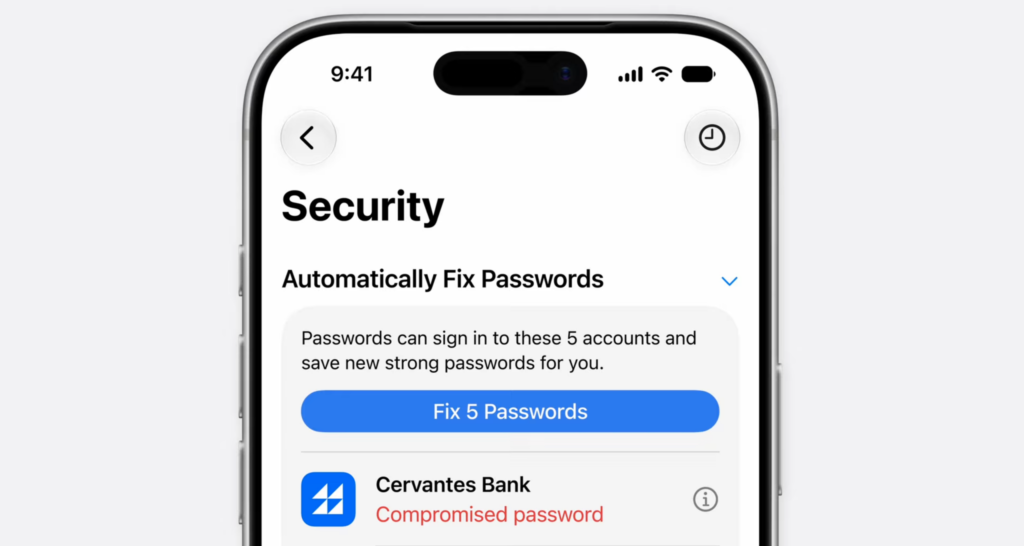
Apple’s iOS 27 approach uses Apple Intelligence and Safari to “agentically take action on your behalf” by navigating a site’s password-change flow. Unlike a fixed script written for a list of supported sites, the system is designed to interpret each page and act through Safari. That could make it more adaptable, but beta behavior and individual website flows will determine how broadly and reliably it works. Here is Max Weinbach’s detailed video walkthrough.
Grammarly’s iPhone Keyboard
Grammarly’s browser and desktop tools work well, but its third-party iPhone keyboard also brought grammar and tone assistance beyond Apple’s built-in autocorrect. iOS 27 narrows that gap by adding system-wide proofreading and more capable Writing Tools.
iOS 27 now “automatically proofreads for users as they type across the system, including within most third-party apps.” However, Writing Tools take things even a step further. Siri will help you draft content based on the description you provide, revise your content on demand, and, more importantly, adopt the writing style you usually use when communicating with that individual. For example, Siri will automatically populate bullet points if you generally draft bullet points for your boss.
MyFitnessPal and Other Food Trackers
A common use for food-tracking apps is identifying a meal and estimating what is in it. iOS 27 now offers a related lookup in three places: Siri mode in Camera, Visual Intelligence, and a Look Up Nutrition button on food photos in the library.
Apple won’t tell you how many calories are in the dish, or give you per-gram figures for sugar or salt. What it will do is grade the meal on a scale from Very Low to Very High nutritional value, with similar ratings for processing, fiber, protein, grains, fat type, and sodium, alongside a name for the dish and a short description of what it thinks is in it.
The feature stops short of full tracking. There is no way to add any of this data to Apple Health, and it does not save anywhere: it does not appear in the Siri app because the system does not treat a Visual Intelligence lookup as a conversation. There is, however, a workaround: if you are viewing a food photo and ask Siri directly, “Give me a nutritional breakdown of this,” it will use on-screen awareness to attempt a more detailed answer than what Visual Intelligence provides on its own.
Raycast and Other Spotlight Replacements
Raycast came into the picture in 2020 with an elementary yet effective proposition; Spotlight sucked. It was insufficient in searching, was inadequate in launching applications, and was absolutely useless in acting as any sort of command center for your Mac. The app performed so well that, despite being built upon a product developed by Apple (and made available for free), Raycast became a paid success story.
But Apple only really took Spotlight seriously last year.
It began with macOS 26 Tahoe. Spotlight received its largest upgrade ever — a complete redesign of its user interface, clipboard history, and, perhaps most importantly, the option to execute hundreds of system and app shortcuts right within Spotlight. It was, for me, the highlight feature of macOS Tahoe and has become a must-have on my Mac.
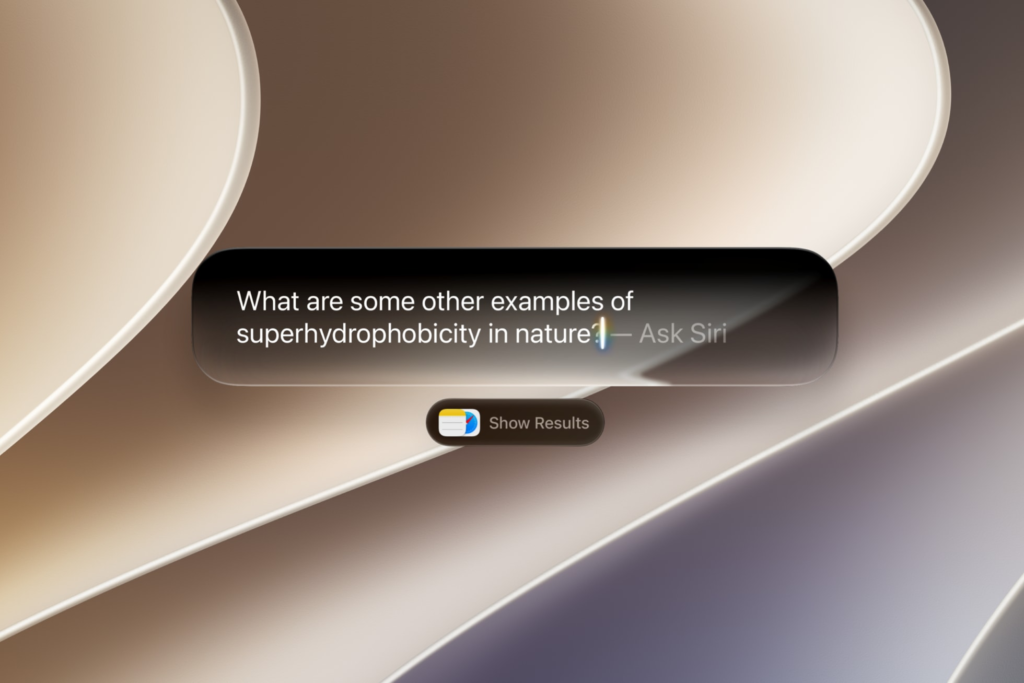
macOS 27 Golden Gate builds on that and adds to it the intelligence layer that Tahoe lacked. Spotlight can now process natural language queries with actual intent understanding via Siri’s AI capabilities. It can surface files based on their contents, respond to queries about what is currently on your screen, and execute any request without even opening another app.
Shortcuts and IFTTT
Shortcuts have been one of the most potent features of the iPhone that most people have never utilized. Not because they did not care to, but because the idea of even opening the app seemed like having to deconstruct a circuit board when all they wished to do was set up a simple shortcut or automation.
In iOS 27, you open Shortcuts, tap the new prompt field, and describe what you want in plain English. Apple showed this off at WWDC with a real example: “When I am leaving work, message Pedro with my ETA.” The app figures out the location trigger, the Maps integration, and the Messages action and builds the shortcut for you to run. Since most of the actions are built-in, Shortcuts knows the context of all the actions, which ones to call, and how to set them up.
The key to IFTTT’s success from day one has been the wide range of third-party integrations: smart home appliances, social networks, services that Apple doesn’t have anything to do with. This makes the app indispensable when working with a complex system that includes different types of platforms. However, the function that caused the majority of users to download the app (or other similar ones), namely to automate something simple without becoming a developer to achieve that goal, can be done much more easily thanks to Shortcuts across Apple OS 27.
A Stretch: ChatGPT, Gemini, and Claude
This one comes with a caveat up front. Calling Siri AI a replacement for ChatGPT, Claude, or Gemini is a stretch. Anyone who uses those apps seriously, for writing, for research, for coding, for anything that requires extended back-and-forth with a genuinely capable model, is not switching to Siri AI. That is not what this is.
But the casual user? The person who downloaded ChatGPT because they want to ask questions they could not be bothered to Google, draft a quick email, or get a simple explanation of something. That person now has a version of that built into their iPhone, surfaced directly from the Dynamic Island, connected to their personal context, and accessible from every text field on their device.
The new Siri has a dedicated app. It holds conversation history. You can type or speak. You can attach photos and documents. It knows what is on your screen. It knows your emails, your messages, your calendar. It can answer questions about the world, summarise things, help you write, and carry on a conversation. The app looks, structurally, a lot like ChatGPT. Apple spent two years saying it would never build a chatbot. Then it built a chatbot.
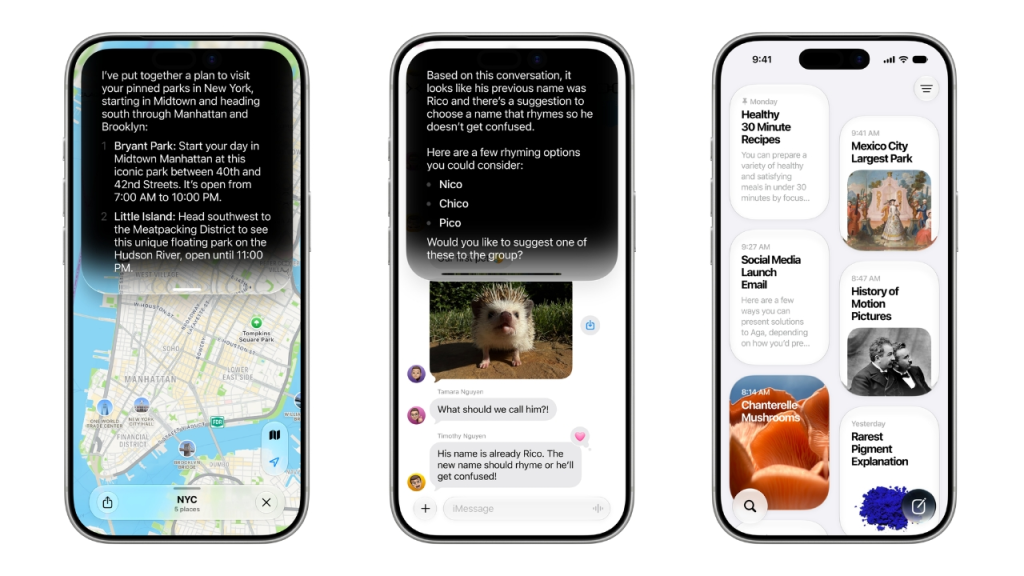
The difference, and it is a real one, is depth. ChatGPT, Claude, and Gemini are genuinely more capable models for complex tasks. They are better at extended reasoning, better at writing long-form content, better at technical questions that require nuance. Siri is not trying to beat them at that. What it is doing is being good enough for the everyday stuff, integrated into everything, and already on your phone, and much more private.
For the person who checks ChatGPT a few times a week to ask something quickly, Siri AI, living in their Dynamic Island, connected to their life, available everywhere they type, is probably going to handle most of those moments. They may not even notice they stopped opening the app.
Fantastical, Notion Calendar, Motion, Google Calendar’s Quick Add
Calendar apps have competed for years on how quickly and intelligently they can turn a thought into an event. Fantastical has offered natural-language creation since 2011; Notion Calendar and Motion add their own scheduling workflows. Apple’s Calendar now overlaps more directly with that value, without making those products identical or obsolete.
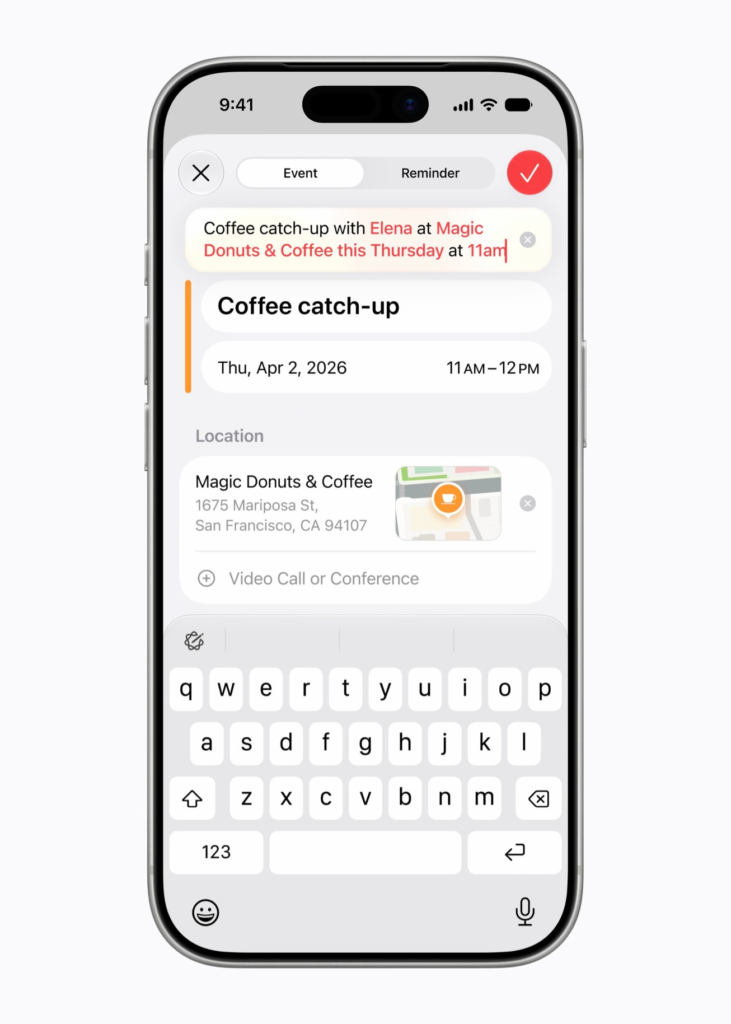
In iOS 27, you type a description of an event in plain English, and Calendar handles the rest. As you type, it identifies contacts mentioned by name, recognises locations, generates a title for the event automatically, and slots everything into the right time and date. One Apple developer comment on MacRumors this week said it plainly: “So they finally added the exact feature Fantastical had since 2011.” Better late than never.